

LLM agents
This group covers LLM agents: agents defined by instructions and a model rather than by code. Create one in ROC, or bring an A2A agent you already run elsewhere.
An LLM agent is a language model with a job description. You give it instructions, a model, the tools and connections it may use, and the vault scopes it declares; it works the request through and answers. It is a peer of a code agent: both are agents in your Agent Service, and a workflow uses either as an Agent step.
What defines one
| Field | What it sets |
|---|---|
| Name | What you call it. Spaces and capitals are fine. Its alias, which workflow steps refer to, is fixed once the agent is created. |
| What it does | One sentence. The agent picker shows it. |
| Instructions | What it should do, and, if it should answer JSON, the shape. |
| Model | How capable a model it needs. Leave it on the deployment’s default, or pick one; a cheaper model suits mechanical work. |
| Thinking | On (the deployment’s own behaviour) or Off (answer without thinking first). Leave it on when the agent must decide what to do next; turn it off when the step hands it what it needs and asks for a specific answer, which is several times faster. Off also applies to any agent it calls mid-turn. |
| Scopes | The vault scopes it declares. A workflow can use it as a step only if it declares that workflow’s scope. Set when you create the agent. |
| Tools | Granted to the agent directly: Bash, Read, Grep, Glob, Edit, Write, WebFetch, WebSearch. None by default, which is right for most workflow steps: the agent works from what the step hands it and from its connections. |
| Connections | Accounts already authorised on the Agent Bridge. Choosing one lets the agent use it; the Bridge keeps the credential and the agent never sees it. |
Create one
In the Workflow Builder:
- Select an Agent step and choose Choose an agent….
- Choose New agent.
- Fill the form, then choose Create agent. The step now uses the new agent.
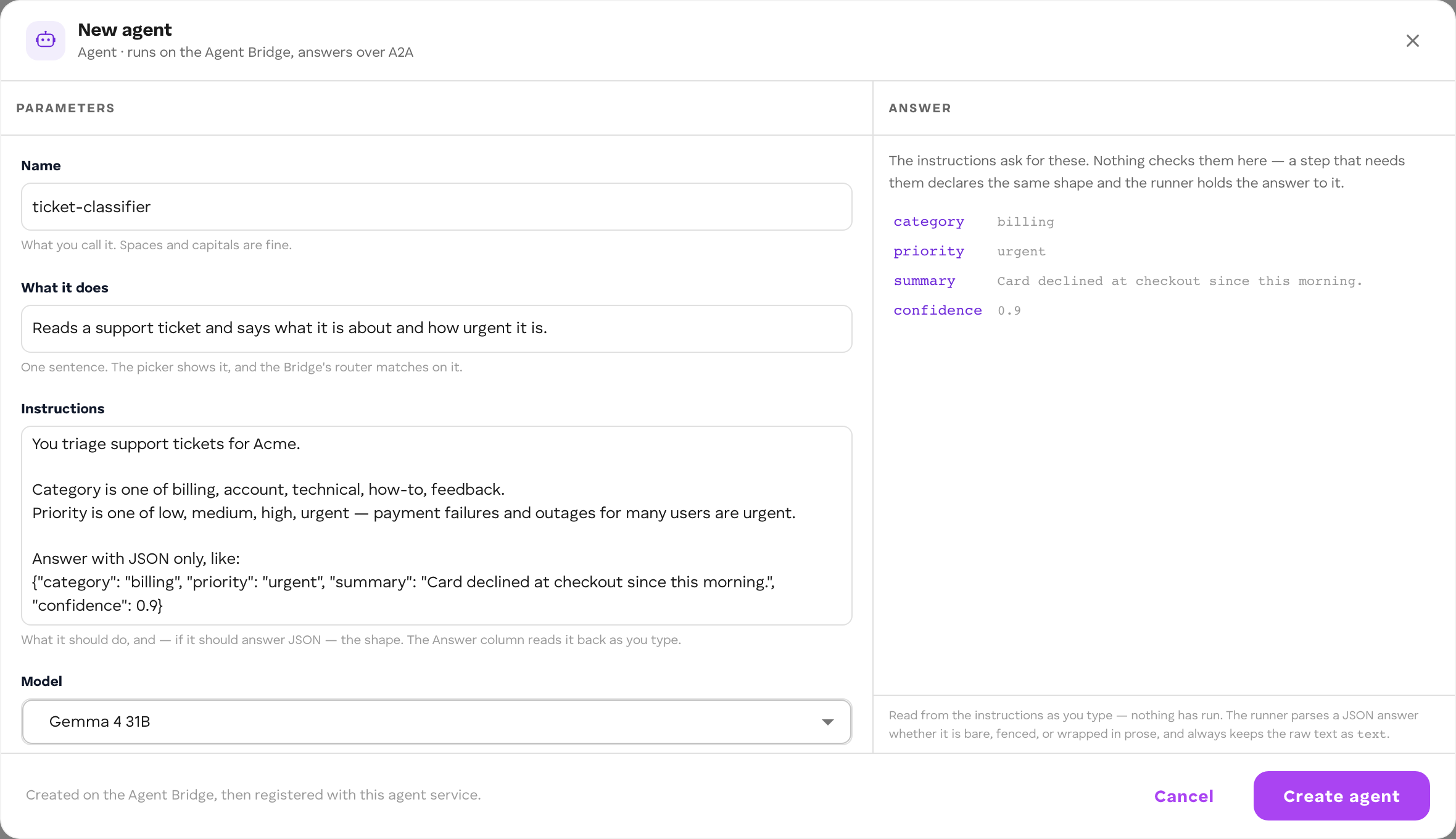 You can also open Agents in the side navigation and choose New agent; the form is the same.
Create agent does two things, and the form names whichever is running:
- Creates it on the Agent Bridge, the platform’s host for LLM agents, and publishes it there.
- Registers it with your Agent Service: a manifest in the service’s bucket that points at the A2A card the Bridge serves for it.
The platform calls an LLM agent over A2A, the same way it calls one you bring yourself. In the Agents list its row reads runs elsewhere, and the Builder’s agent picker marks it EXT.
Edit one
On an Agent step that uses it, choose Open. The same form opens with the agent’s current definition; change it and choose Save agent. Every workflow that uses the agent picks the change up on its next turn. Change on the step picks a different agent instead.
Scopes are not editable after creation. If the Agent Bridge mounts its agents read-only, the form shows the definition but cannot save it.
Use it in a workflow
An LLM agent is used through an Agent step. The step sends it a request (What to ask it), parks the run, and continues when the agent answers. Before a workflow runs on a vault, every agent it calls is connected to that vault too; deploying and running from ROC connects them with the workflow.
Its answer
An LLM agent answers in text. The runner turns the answer into fields on the carried item:
- The whole answer is kept as
textand asoutput. - If the answer contains a JSON object, bare, fenced in
```json, or wrapped in prose, its fields are added too.
So a later step or branch can read a field such as $json.score only if the agent answered JSON with a score key, and it answers JSON only if something asked it to. Ask in one of two places:
- In the instructions. The form’s Answer column reads the instructions as you type and lists the fields they ask for. It checks nothing: it is the instructions read back.
- On the step, with Answer it should give (a JSON example such as
{"score": 8, "recommendation": "advance"}). With Ask the agent for this shape on (the default), the shape is appended to the request, and an answer missing any of its keys fails the step, naming the missing keys.
Declare the shape on every step whose output a branch or a later step depends on. An agent asked for prose and wired to a branch stalls the run one step later, after doing its job well.
You screen candidates against our hiring policy.
Answer as JSON and nothing else:{"score": 8, "recommendation": "advance", "why": "…"}